Automating workbench jobs
Trigger workbench runs on a schedule, from incidents, or from ticketing integrations
Overview
Workbenches can run jobs automatically through several mechanisms:
- Cron schedules — run a prompt on a recurring schedule
- Webhook triggers — fire a job when an observability alert or issue tracker event matches a pattern, including when someone writes
Plural fix thison a PR or ticket - Post-merge follow-ups — ask the workbench associated with a merged pull request to verify the reconciled system state
Cron schedules and webhook triggers are managed from the overflow menu (•••) on a workbench. Follow-up prompts are configured in your source control or CI automation.
Cron schedules
Cron schedules let you run a fixed prompt against the workbench on a repeating schedule — for example, a nightly health check or a weekly cost summary.
Creating a cron schedule
- Open the workbench and click ••• → Cron schedules.
- Click Create schedule.
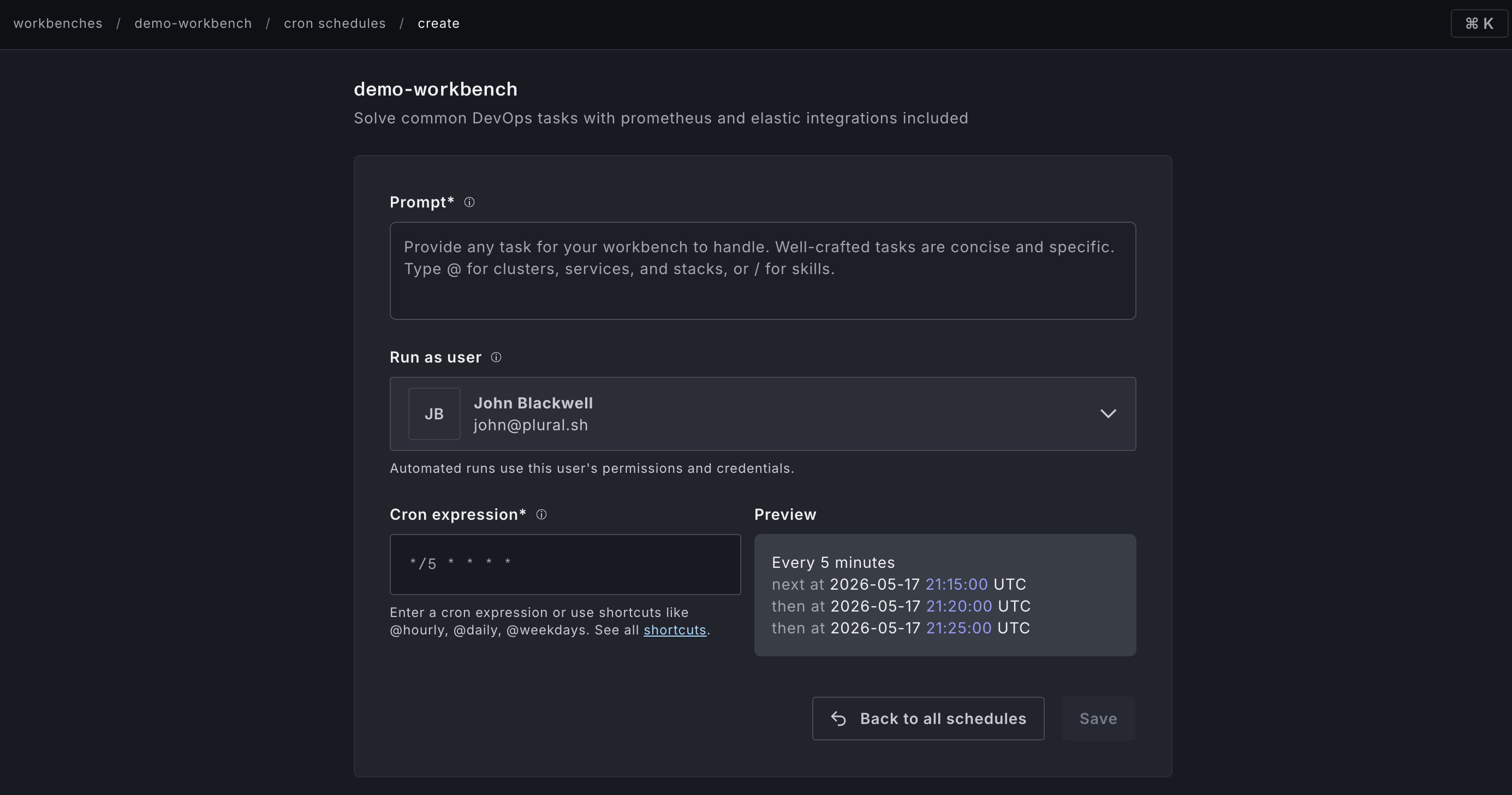
- Fill in the form:
| Field | Description |
|---|---|
| Prompt | The prompt the agent will receive when the job fires. Supports the same rich input as a manual job. |
| Crontab | A standard cron expression (e.g. 0 8 * * 1 for every Monday at 08:00 UTC). A preview of the next five run times is shown below the field as you type. Supports the common predefined shortcuts (@daily, @weekly, etc.). |
| Run as | The user the job should run as. Defaults to the workbench bot user. |
- Click Save schedule.
Managing schedules
The Cron schedules page lists all schedules for the workbench. Click the pencil icon to edit a schedule or the trash icon to delete it.
Webhook triggers
Webhook triggers fire a workbench job when an incoming webhook payload matches a pattern you define. Plural supports two categories of webhook source:
- Observability webhooks — payloads from alerting systems (Datadog, Grafana, PagerDuty, etc.) registered under Observability Webhooks
- Issue webhooks — payloads from issue trackers (Jira, Linear, GitHub Issues, etc.) registered as issue webhook sources in Plural
Creating a webhook trigger
- Open the workbench and click ••• → Webhooks.
- Click Create.
- If you do not have an observability or issue webhook registered yet, you will be prompted to create one. Follow the setup guide for your provider — Plural will generate a webhook URL and secret to configure in the external system.
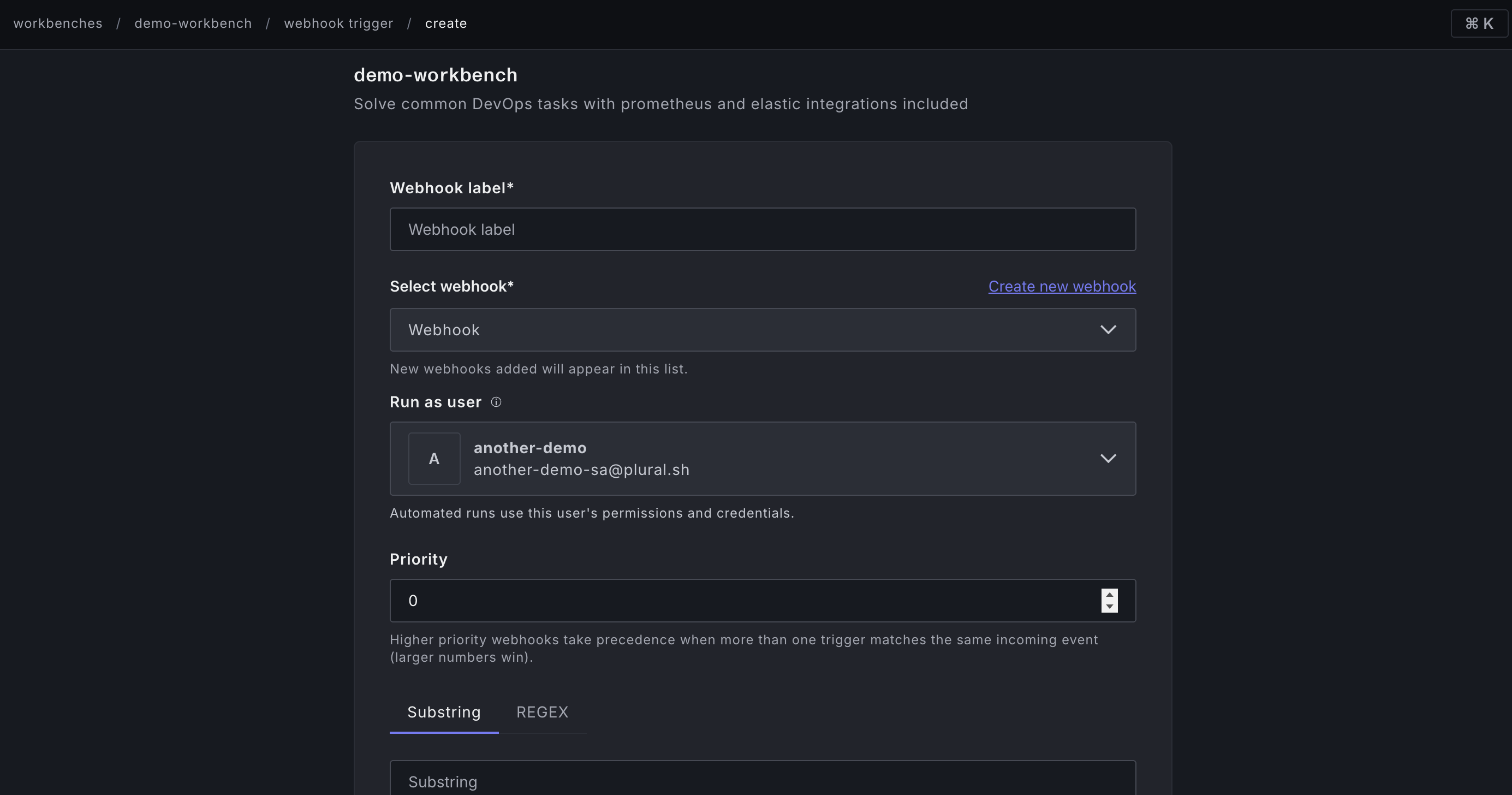
- Once a webhook source is registered, configure the trigger:
| Field | Description |
|---|---|
| Name | A label for this trigger |
| Webhook | The observability or issue webhook source to listen to |
| Match type | Substring — fires if the payload body contains the given string. Regex — fires if the payload body matches the given regular expression. |
| Match value | The substring or regex pattern to match against the raw webhook payload |
| Case insensitive | Whether the match should ignore case |
| Prompt | The prompt sent to the agent when the trigger fires. You can reference metadata from the payload via template variables. |
| Run as | The user the job should run as. Defaults to the workbench bot user. |
| Priority | When multiple triggers could match the same payload, higher-priority triggers win. |
- Click Save.
How triggers fire
When Plural receives a webhook event, it evaluates all triggers registered across all workbenches for that webhook source. For each matching trigger, it creates a workbench job with the configured prompt and links the job to the originating alert or issue. This means:
- The job appears in the workbench Jobs tab
- The originating event appears in the workbench Alerts or Issues tab
- The agent has access to the full alert or issue context when constructing its response
Triggering jobs with "Plural" mentions
A common pattern is to configure a trigger with Match value: Plural (substring, case-insensitive). With this in place, anyone on your team can kick off a workbench job by writing something like:
Plural deploy this — on a pull request comment Plural fix this — on a Jira ticket, GitHub issue, or Linear issue
When Plural receives the webhook for that comment or issue, the text matches the trigger and a job is created automatically. The full issue or comment body is forwarded to the agent as its prompt, so the instruction you wrote — "fix this", "deploy this", "investigate the memory leak" — becomes the agent's task.
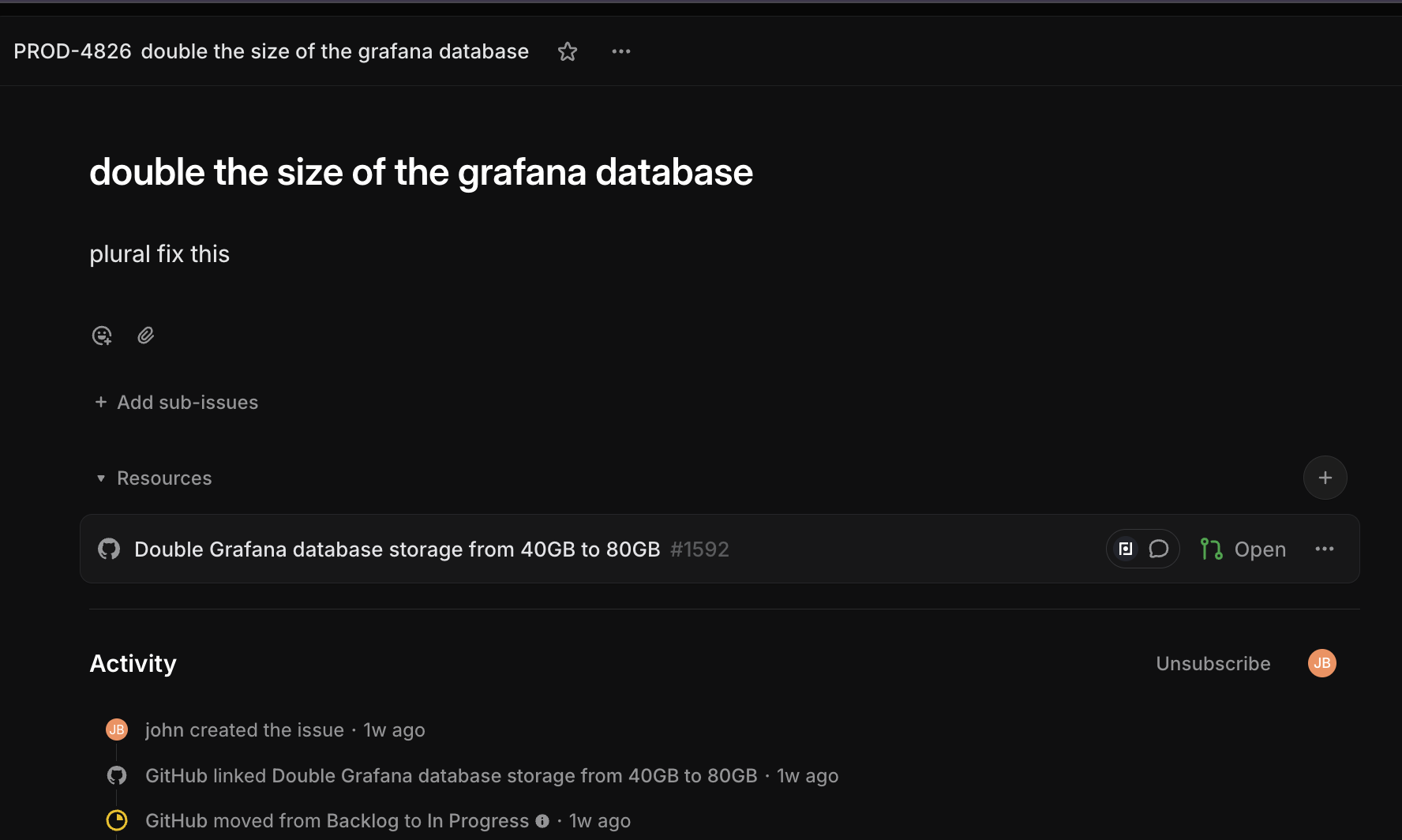
This works across the supported provider matrix: GitHub PR comments, GitLab MR notes, Jira issues, Linear, Bitbucket, Azure DevOps, and others. For Jira, the match runs against the issue description rather than individual comments, so the "Plural ..." text should be in the description or title.
Setting up the webhook in your external system
Each webhook source has its own setup guide available during trigger creation. Click Setup guide to open a side panel with provider-specific instructions. In general you will need to:
- Copy the Plural-generated webhook URL for the source
- Copy the webhook secret
- Configure the URL and secret in your alerting tool or issue tracker
- Send a test payload to verify connectivity
Post-merge follow-up jobs
When a workbench opens a pull request, a GitHub Actions workflow can send a follow-up prompt after the pull request merges and GitOps reconciliation completes. This lets the same workbench verify the live system or infrastructure state and address issues that are not visible from the source diff alone.
See Automating workbench follow-up for provider-specific setup. The current guide includes authentication, inputs, and a complete GitHub Actions workflow.
Flow-triggered jobs
Workbenches can also be triggered from a Plural Flow. On the flow detail page, click Start workbench job to select a workbench and enter a prompt. The resulting job is scoped to the flow's services and pipelines, giving the agent the right context for that application boundary.
See Plural Flows for more on how flows and workbenches work together.